OneCard is the official identification for St. Clair College students. It gives students access to eligible services and printing, with more services coming soon.
After you have setup your St. Clair ONE account you can upload your photo from myphoto.stclaircollege.ca website free of charge. You may also visit your local OneCard office to have your picture taken for a fee.
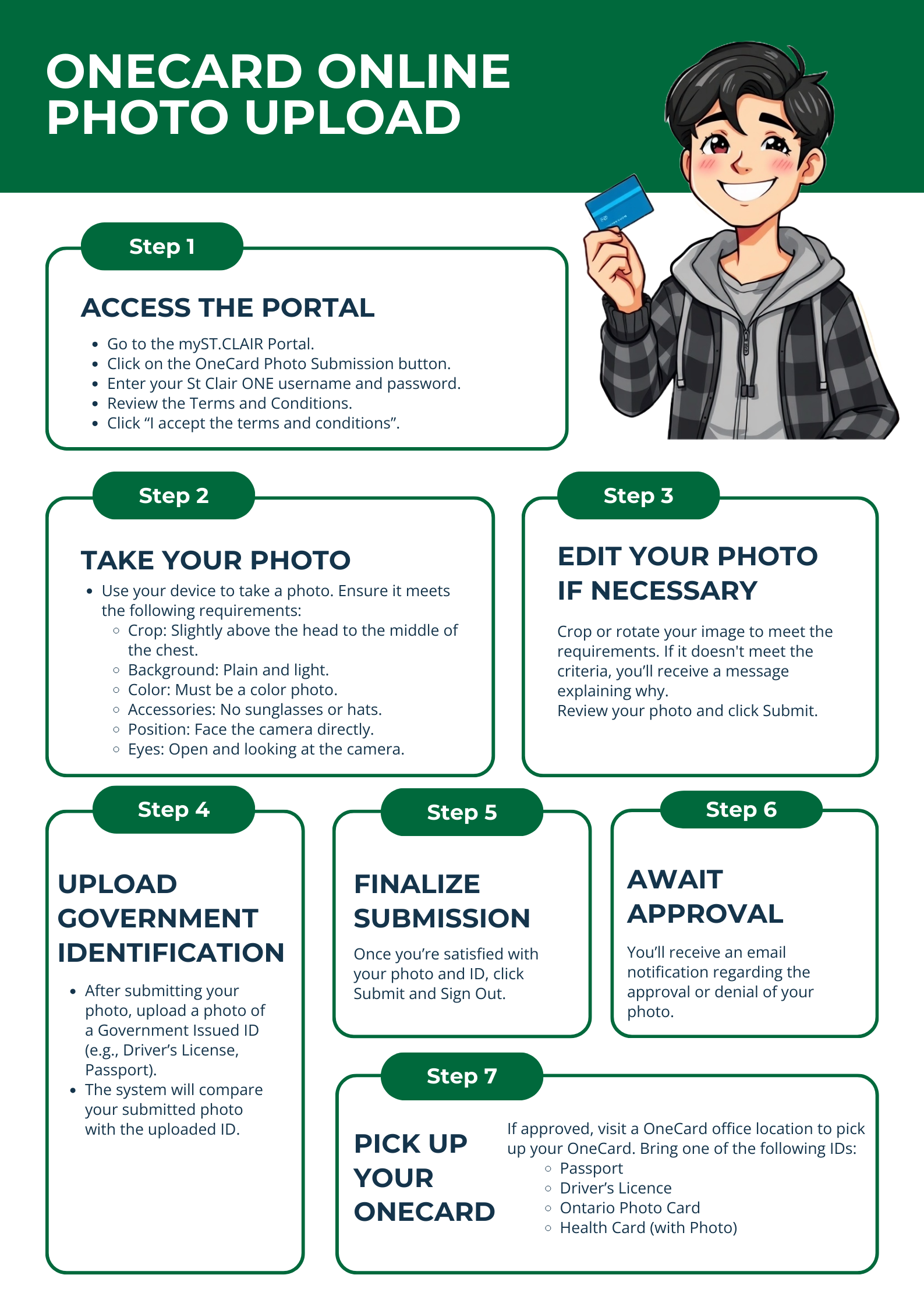
Your OneCard can be picked up at the OneCard office at your campus. To obtain your first St. Clair College OneCard, you must present one of the following pieces of identification.
Passport, Driver’s Licence, Ontario Photo Card, Health Card (with Photo) or, you can present at least two of the following documents, one of which must include a current photo:
- Certificate of Indian Status
- Canadian Citizenship Certificate
- Birth Certificate
- Social Insurance Number (SIN) Card
- Permanent Resident (PR) Card
- Nexus Card
OneCard can be used for printing, library services, purchasing additional print services, and much more coming soon.
No because the OneCard has built-in chip technology which allows students to tap and swipe their cards around campus. Putting a hole in the card will cause it to become inoperable. You will be charged $20 for a replacement card if damaged from hole punching.
If you have any additional questions or concerns, please feel free to email us at onecard@stclaircollege.ca
OR reach us by phone: 519-972-2727 Ext. 4177
OR stop by any of our ONE Card offices with any questions or concerns:
- Main Windsor Campus: Room: A2506
- St. Clair Centre for the Arts: Room: Q0029 - CLOSED
- Chatham: Room: W1016
Your Mobile OneCard is your official St. Clair College ID. The mobile OneCard is considered a valid form of ID and provides a level of convenience. Once added to the Apple Wallet, the mobile credential can be used for printing and to access college buildings. Using contactless technology, cardholders can simply tap their iPhone or Apple Watch to card readers to open campus doors, print and more.
- If you have not previously been issued a OneCard, visit https://myphoto.stclaircollege.ca to submit a photo for approval.
- Wait for your photo to be approved.
- Download and configure the TouchNet 360U mobile app.
- Search and select St. Clair VIP.
- Choose SSO, and you will be redirected to St Clair’s login page. Use your myStclair login credentials to access your account.
- Accept all cookies.
- Select the "Add to Apple Wallet" button, then select whether you would like to add your OneCard to your iPhone or Apple Watch.
You can add the OneCard to both your iPhone and Apple Watch, but only one format of the card (physical or mobile) will be permitted. Once a card is added to Apple Wallet, the physical card will no longer work. However, if you have a physical card, you are encouraged to keep it for use as a valid ID.
Contact the OneCard office at 519-972-2727 ext. 4177 or email OneCard@stclaircollege.ca.
Business hours are 9 am to 4:30 pm Monday to Friday.
You can add your OneCard to 1 iPhone and 1 Apple Watch.
You should first remove your pass from your old device in the Apple Wallet app.
Once your old pass is removed, you can add your pass to the new device by using the TouchNet 360u app.
If you are using Express Mode, you do not have to do anything. If you are not using Express Mode, you will have to authenticate each time you access your phone. This is a user security preference. Note: Express Mode is turned on by default.
On iPhone XS, XS Max, XR, and more recent Express Mode with power reserve is available for up to five hours after the device’s battery needs to be charged.
OneCard in Apple Wallet can be used even if your iPhone or Apple Watch does not have network connectivity, as the OneCard is stored on your device. If you are having any difficulty using your OneCard to complete a transaction, report any issues to the OneCard Office at OneCard@stclaircollege.ca or call 519-972-2727 ext. 4177 so we can investigate.
There is no cost to use your OneCard in your Apple Wallet.
Yes, an approved photo is required for eligibility.
Your other device will continue to work; however, you should mark the missing device as lost on iCloud.com until it is found.
You can also deactivate the mobile OneCard for the lost device by signing into your OneCard account on a computer.
You can also manage active devices from your OneWeb site. https://secure.touchnet.net/C25929_oneweb/Account/Dashboard.
The same way you have always used your plastic card, simply tap the reader with your phone instead of your card.
Faculty, staff, and students are eligible if they meet all device and software requirements.