Wireless
We are excited to announce that we are upgrading the Wi-Fi system across the college to the latest technology for better connectivity. Please be aware that some of the old SSIDs have been replaced.
St. Clair College hosts several wireless networks to support students, faculty and staff. These services are based on a secure reliable platform using WPA/2 enterprise encryption with 802.1X authentication. Please be aware devices that use WPA personal encryption will not work on this network, including some wireless printers, gaming consoles, etc.
Please check the knowledgebase for details and follow the St. Clair College Wireless Overview - June 2024 to connect to the Wi-Fi system.
Commonly Asked Questions
- If you do not know your college assigned email address call the IT HelpDesk at 519-972-2727 extension 2500 and we will be happy to assist. Proper ID is required.
- Please visit the Self-Service Forgot Password link: Self-Service Password Reset
- If you do not recall your alternative authentication methods or you have not set up your alternative authentication methods please call the IT helpdesk at 519-972-2727 extension 2500 and we will be happy to assist. Proper ID is required.
Name changes can be completed online.
At least ONE uppercase character (A through Z)
At least ONE lowercase character (a through z)
At least ONE number (0 through 9)
The password must meet the length rule requirements. The password must contain at least: 9 characters.
The password must meet the password history requirements of the system. The number of passwords to store: 5.
Important Services Updates
What’s Changing
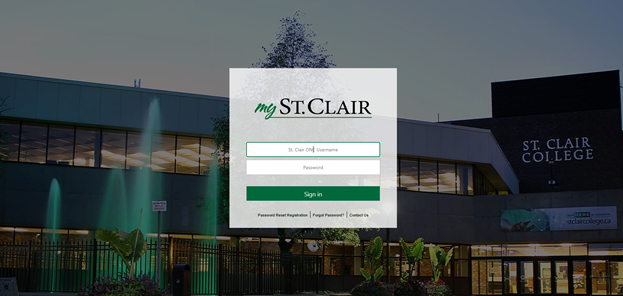
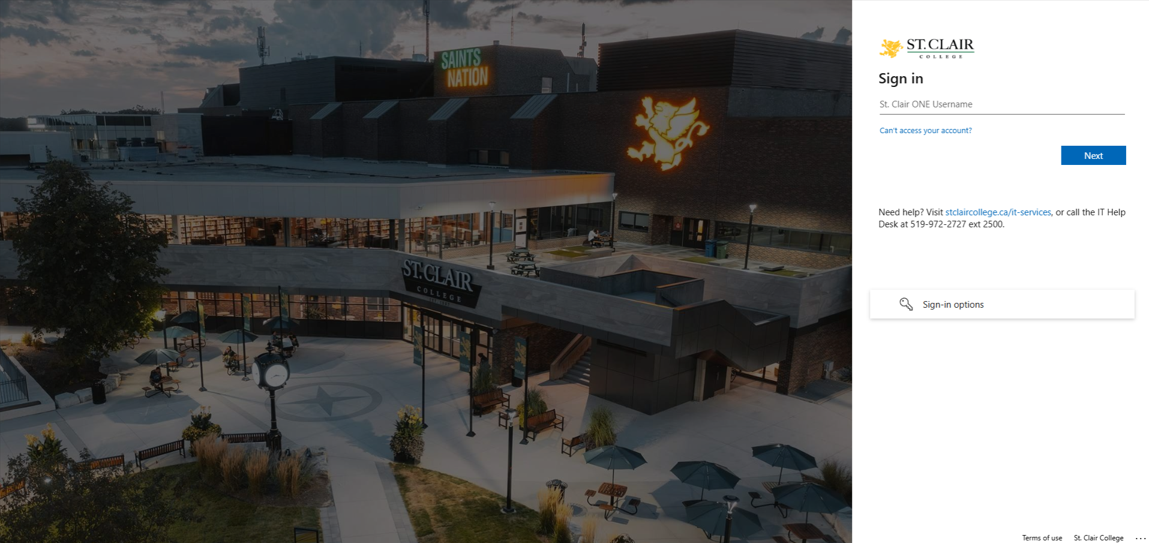
St. Clair College is adopting a new authentication platform to enhance the sign-in experience and better protect against evolving cybersecurity threats. As part of this update, you'll notice a refreshed look and feel when signing in to services such as mySt.Clair, email, OneDrive, and other connected applications.
See the difference below:
Old look
New look
Why We’re Making This Change
This update brings several important benefits:
- Improved security: Enhanced, modern security protections will help keep your account and data safer.
- Better reliability: Signing in will be more consistent and resilient, reducing disruptions from system outages or maintenance.
- Modern experience: The updated sign-in page aligns with current design and accessibility standards.
What You Need to Do
For most users, no action is required. You will continue to sign in using your existing username and password. The main difference will be the appearance of the sign-in screen.
When This Will Happen
The new sign-in experience will begin rolling out on February 22th, 2026. The transition is designed to be seamless, and we do not anticipate any disruptions to your access.
Need Help?
If you have questions or encounter any issues signing in, please contact the IT Help Desk.
Thank you for your patience as we make these improvements to enhance security and reliability for everyone.
Thanks,
St. Clair College IT Services
To enhance overall account protection and simplify how you manage your security methods, IT Services has migrated the Multi-Factor Authentication policy and Self-Service Password Reset policy to a new unified Authentication Methods policy.
What Does This Mean for You?
- No action is required from users.
- After the migration, your existing authentication methods (such as the Microsoft Authenticator app, phone number, or alternate email) will automatically carry over. Continue using them as you do today.
Benefits:
- A more streamlined and secure experience for managing sign-in methods and performing password resets.
Helpful Links:
- St. Clair College Setting up Multifactor Authenticaiton
- St. Clair College Self Service Password Reset
For any questions or assistance, please contact the IT Help Desk.
Thanks,
St. Clair College IT Services
As part of our ongoing efforts to enhance IT security, we are introducing a new feature in Outlook to help protect our college community from phishing and spam emails. Reporting suspicious emails helps alerts our IT Cybersecurity team for further analysis, improve spam filters, and protects others from similar threats.
What's New?
Outlook now includes a Report button that allows you to quickly flag emails as:
- Report Junk: For unwanted or spam emails that are not malicious.
- Report Phishing: For emails attempting to trick you into sharing personal information (e.g., passwords, credit card details).
How to Report
Follow this guide https://stclaircollege.service-now.com/sp?id=kb_article_view&sysparm_article=KB0010255 for step-by-step instructions on reporting phishing emails from both desktop and mobile devices.
For any questions or assistance, please contact the IT Help Desk.
St. Clair College IT Services
Starting Monday, December 1, 2025, new App Protection Policies will be applied to all college accounts to strengthen data security on both college-owned and personal mobile devices. These policies ensure college data is protected and can only be accessed through Microsoft apps (such as Outlook, Outlook Calendar, Teams, and OneDrive). Third-party apps will no longer be supported for this purpose.
Please note that these changes apply only to your college account data. Your personal device is not monitored or managed by the college, and your personal apps, photos, and files remain private.
What to Expect:
- If you use your phone’s built-in email and calander app , you’ll be signed out and must switch to the Outlook mobile app for college email.
- If you already use Outlook, you’ll just need to sign in again when prompted.
- You may also need to sign in again to other Microsoft apps (Teams, OneDrive, Word, Excel, etc.).
- Email access via browsers or the MyStclair portal will not be affected.
- These changes will only be applied to Android and iOS devices.
Need Help Setting Up Outlook?
Follow Microsoft’s guide to install and sign in to the Outlook mobile app:
For any questions or assistance, please contact the IT Help Desk.
St. Clair College IT Services